Help Scene
Add some information about this game. Add text with this help_text.py. Then create a box to control the sound.
1 2 3 4 5 6 7 8 9 10 11 12 13 | b_button = constants.button_state["button_up"]
start_button = constants.button_state["button_up"]
select_button = constants.button_state["button_up"]
box = []
check_box = stage.Sprite(image_bank_3, 4, 130, 60)
box.append(check_box)
border = []
box_border = stage.Sprite(image_bank_3, 13, 130, 60)
border.append(box_border)
|
The above code will display a sound control box on the screen.
1 2 3 4 5 6 7 8 9 10 11 12 13 14 15 16 17 18 19 20 21 | while True:
keys = ugame.buttons.get_pressed()
if keys & ugame.K_O != 0:
if b_button == constants.button_state["button_up"]:
b_button = constants.button_state["button_just_pressed"]
elif b_button == constants.button_state["button_just_pressed"]:
b_button = constants.button_state["button_still_pressed"]
else:
if b_button == constants.button_state["button_still_pressed"]:
b_button = constants.button_state["button_released"]
else:
b_button = constants.button_state["button_up"]
if b_button == constants.button_state["button_just_pressed"]:
if keys & ugame.K_O != 0:
volume += 1
if volume % 2 == 1:
check_box.move(constants.OFF_SCREEN_X, constants.OFF_SCREEN_Y)
else:
check_box.move(130, 60)
|
I made it only work when the button was pressed and the variable called volume is added by 1 and divided into odd and even numbers. So if the volume is odd number, it is mute.
As soon as you save the file onto the PyBadge, the screen should flash and you should see something like:
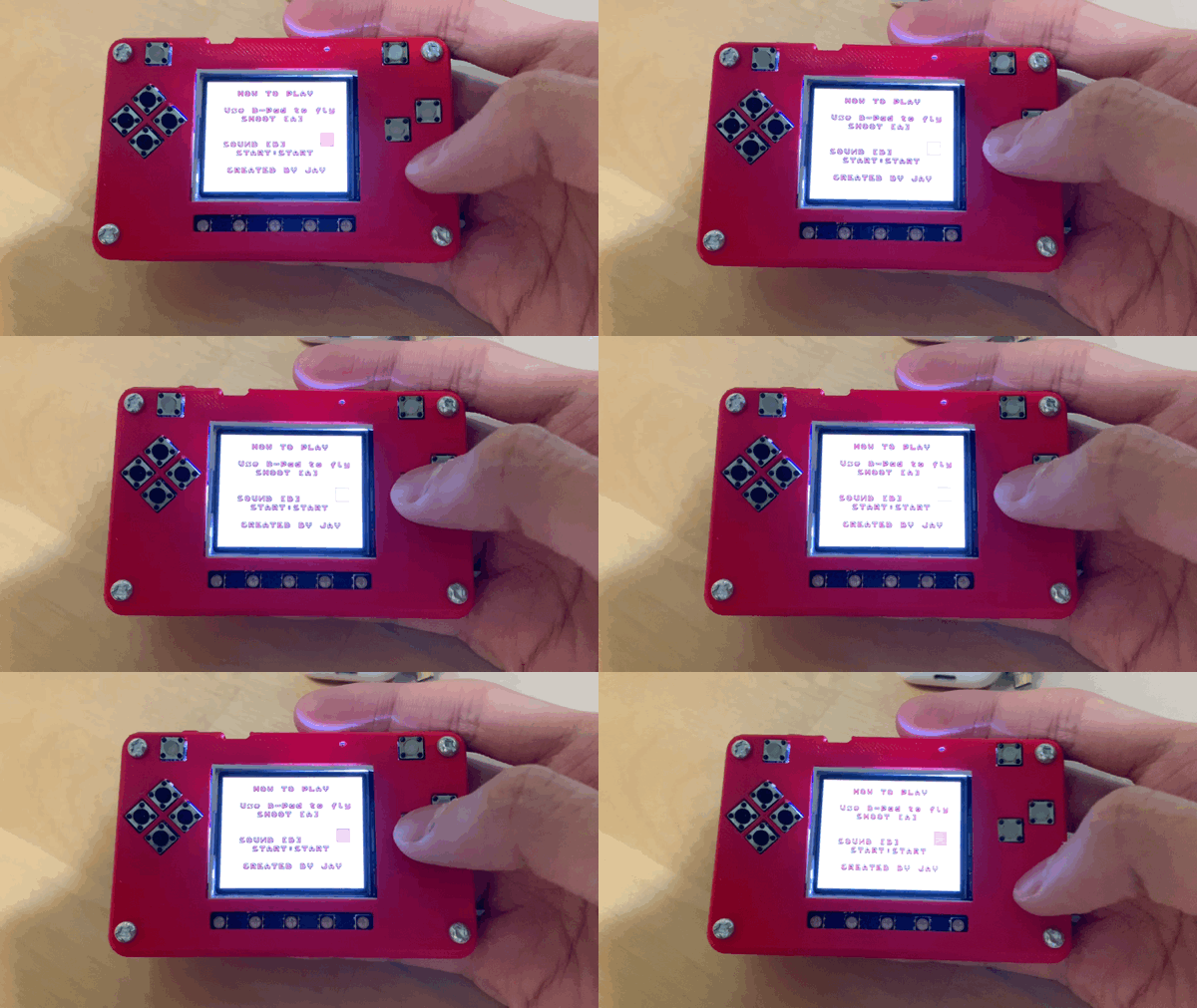
Mute Button
Now, you can mute the sound to press B button.